среда, 27 ноября 2013 г.

пятница, 22 ноября 2013 г.
Tutorial: How to Equalize Textures in Photoshop | tolas
Tutorial: How to Equalize Textures in Photoshop | tolas

Isn’t it a beautiful concept to make textures using DSLR cameras? It is, until you won’t place them on a big surfaces and hit tiling problems like uneven brightness, visible seams, color shifts etc. There are few tricks to deal with these problems though. One of them was recently showed here. It inspired me to write this post and show you how I prepare my textures before I make them tileable.
Personally I rarely use Photoshop to paint out tiling. Programs like Pixplant or Imagesynth let you make tileable textures automatically using seed images. Although it’s not a perfect solution for wood and other organics, it can save a lot of time. Basically, you can take few photos of a surface, import it and get a tileable output with just a few clicks. Theoretically it works with all “raw” photos but practically it’s better to invest more time and prepare them carefully before importing. Making them even in terms of color tone and overall brightness will pay off in the end.
I’d like to show you the way I equalize my seed images using layers in Photoshop. But firstly I have to admit that it’s based on this mini tutorial by Peter Guthrie. To be honest I just couldn’t grasp it fully so I started to mess around with layer blends and eventually developed my own technique. The goal was to minimize the amount of steps.
 (link fixed).


 Cheers
Tutorial: How to Equalize Textures in Photoshop
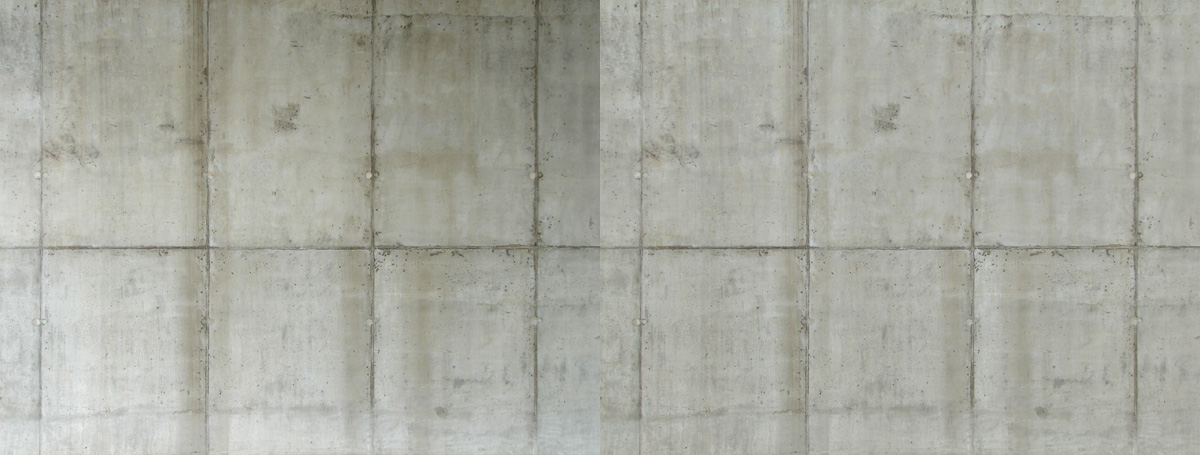
Isn’t it a beautiful concept to make textures using DSLR cameras? It is, until you won’t place them on a big surfaces and hit tiling problems like uneven brightness, visible seams, color shifts etc. There are few tricks to deal with these problems though. One of them was recently showed here. It inspired me to write this post and show you how I prepare my textures before I make them tileable.
Personally I rarely use Photoshop to paint out tiling. Programs like Pixplant or Imagesynth let you make tileable textures automatically using seed images. Although it’s not a perfect solution for wood and other organics, it can save a lot of time. Basically, you can take few photos of a surface, import it and get a tileable output with just a few clicks. Theoretically it works with all “raw” photos but practically it’s better to invest more time and prepare them carefully before importing. Making them even in terms of color tone and overall brightness will pay off in the end.
I’d like to show you the way I equalize my seed images using layers in Photoshop. But firstly I have to admit that it’s based on this mini tutorial by Peter Guthrie. To be honest I just couldn’t grasp it fully so I started to mess around with layer blends and eventually developed my own technique. The goal was to minimize the amount of steps.
Step by Step
Download Image 1 (Large) from this page (http://www.cgtextures.com/texview.php?id=12195&PHPSESSID=f2514678a24adfa1a0cb1fcc2b09facf )
Bookmark Cgtextures.com if you haven’t done it yet
Open it in Photoshop
Duplicate Background layer [ Ctrl-J ]
Open Filter > Blur > Average…
Double click Background layer to change it into movable layer.
Move it to the top of the stack, change it’s opacity to 50% [ 5 ] and blending mode to Linear Light
Open Filter > Other > High Pass… and play with Radius parameter to control the effect
Usually Radius 100 works just fine but depending on the photo you might want to tweak it in the range of 50 – 150.
- Download Image 1 (Large) from this page
- Open it in Photoshop
- Duplicate Background layer [ Ctrl-J ]
- Open Filter > Blur > Average…
- Double click Background layer to change it into movable layer.
- Move it to the top of the stack, change it’s opacity to 50% [ 5 ] and blending mode to Linear Light
- Open Filter > Other > High Pass… and play with Radius parameter to control the effect
Note: If you’re using the latest Photoshop version you may need to click “Show All Menu Items” in order to access Average and High Pass…
Radius of 100 works just fine in most situations but you might want to tweak it in the range of 50 – 150 depending on image resolution and size of detail.Actions
I use this trick a lot, 90% of my textures are equalized and as you imagine, it’s not very handy to go through all these steps each time I edit a seed image. Turns out you can easily automate the process using Actions, so now it’s a single clicker (link fixed).Examples
wood
copper
cardboard
четверг, 21 ноября 2013 г.
понедельник, 18 ноября 2013 г.
ChronoSculpt. Новый инструмент для коррекции симуляций и создания анимированного мофинга.

ChronoSculpt
ChronoSculpt это самостоятельный инструмент, разработанный LightWave 3D Group, предназначенный для работы с анимационным кешем и кешем динамической симуляции, полученных из различных приложений, и позволяющий использовать скульптинг и трансформацию на отрезках временно́й шкалы. Это может сэкономить часы работы, внося быстрые изменения в файлы с запечённой динамической симуляцией, исправляя искажения, проникновение объектов друг в друга или удалять куски симуляции отклонившиеся от курса.
Используя распространённые форматы вертексного кеша в форматах Alembic, LightWave MDD, или Autodesk Geometry Cache, вы с лёгкостью сможете устранить ошибки динамических симуляций или же полностью изменить облик персонажа в рамках определённых отрезков времени или глобально.
Приложение позволяет экспортировать любой кадр вашего скульпта или деформации напрямую в файл LightWave endomorph или OBJ. Больше информации доступно на сайте LightWave 3D.
четверг, 14 ноября 2013 г.
2 MD > 1 семестр > 1 задание
1
Семестр / Задание 1
Построение
примитивов
- Куб (W=1m,D=1m, H=1m) + Параллелепипед (W=1m, D=2m, H=0,5m)
- Шар (R=0,5m) с вырезанным сегментом + Сегмент 60° прилинкованный к шару
- Цилиндр (R=0,5m) с вырезанным сегментом + Сегмент 90° прилинкованный к цилиндру
- Тор (R1=0,5m; R2=0,2m) с вырезанным сегментом + Сегмент 90° прилинкованный к тору
- Конус усечённый (R1=1m; R2=0,5m) с вырезанным сегментом + Сегмент 30° прилинкованный к конусу
- Труба (R1=0.5m; R2=0,25m; h=1m) стоит + труба (R1=0.5m; R2=0,25m; h=1m) без сегмента в 45° лежит
- Пирамида W=1m; D=1m; H=1m
Примеры:


среда, 13 ноября 2013 г.
вторник, 12 ноября 2013 г.
пятница, 8 ноября 2013 г.
Procedural V-Ray Sand Material by Javier Pintor - 3D Architectural Visualization & Rendering Blog
Процедурный материал песка с помощью V-Ray
Procedural V-Ray Sand Material by Javier Pintor - 3D Architectural Visualization & Rendering Blog
Procedural V-Ray Sand Material How-To from Ronen Bekerman on Vimeo.
Procedural V-Ray Sand Material by Javier Pintor - 3D Architectural Visualization & Rendering Blog
Procedural V-Ray Sand Material How-To from Ronen Bekerman on Vimeo.
четверг, 7 ноября 2013 г.
Изменение сетки модели после применения к ней рига
CGTalk - View Single Post - Editing a character's Mesh after it's been Rigged...
It's simple to fix a mesh underneath a Skin modifier, without having to save mesh or weights. We do it all the time here.
1. Go to your initialization pose (you saved this on frame 0, right? If not, shame shame.).
2. In the Skin rollout Advanced Params, turn off Always Deform (if your model changed position, then you don't have a proper Init pose. Ask.)
3. Edit the mesh, scale the bones.
4. Turn Always Deform back on, and you're done.
It's simple to fix a mesh underneath a Skin modifier, without having to save mesh or weights. We do it all the time here.
1. Go to your initialization pose (you saved this on frame 0, right? If not, shame shame.).
2. In the Skin rollout Advanced Params, turn off Always Deform (if your model changed position, then you don't have a proper Init pose. Ask.)
3. Edit the mesh, scale the bones.
4. Turn Always Deform back on, and you're done.
среда, 6 ноября 2013 г.
3 MD - 1 Семестр - Задание 1
- Дневной направленный свет из окна
- Дневной рассеянный свет из окна
- Вечерний закатный свет из окна
- Ночной свет из окна + электрический свет из комнаты справа
- Ночной свет из окна + электрический свет из комнаты справа + электрический свет с потолка
- Дерево полированное + под лаком + необработанное + кора (составной материал)
- Бетон
- Пластик твёрдый глянец + пластик мягкий шершавый матовый
- Стекло прозрачное + матовое (пескоструй)
- Воск
- Кожа
- Вода (поверхность водоёма)
- Резина
- Ткани хлопок + шёлк + вельвет
- Хром / нержавеющая сталь со следами захватанности
- Сталь полированная со следами ржавчины
- Золото / серебро / медь
- Бумага
- Керамика обожжённая с элементами декора под глазурью
- Песок
- Хлеб (корка + мякиш)
- Волосы
- Человеческое тело
- Мех
- Металл крашеный с облупленной краской
- Уголь (графит)
- Сетка рабица
- Яблоко
- Молоко
1
Семестр / Задание 1
"Визуализация
материалов на заданном объекте в интерьере"
5 световых
ситуаций:
Материалы:
Дополнительные
материалы:
Подписаться на:
Сообщения (Atom)